Here's a reality that most LMS platforms ignore: for a huge number of students around the world, a phone is their primary — sometimes only — computing device. They don't have a laptop sitting on a desk at home. They have a smartphone. Maybe shared with a sibling.
If your school's LMS only works well on a desktop browser, you're excluding those students from accessing their coursework outside of school hours. That's not a minor inconvenience — it's an access gap that directly affects learning outcomes.
NimbusLearn's mobile app was built to close that gap.
Why Mobile Isn't Optional Anymore
In many regions where NimbusLearn is used — the Middle East, North Africa, South Asia — smartphone penetration far exceeds laptop or desktop ownership among families. A 2024 GSMA report found that mobile internet users in the Middle East grew to over 280 million, with smartphones being the dominant access point for most digital services.
For students in these regions, "go home and check the LMS" means "open the app on your phone." If that app doesn't exist, or if it's a clunky mobile version of a desktop site, students simply won't use it. They'll go back to asking classmates on WhatsApp what the homework was.
We built NimbusLearn's mobile app as a first-class experience — not a responsive website crammed into a smaller screen, but a native app designed for how students actually use their phones.
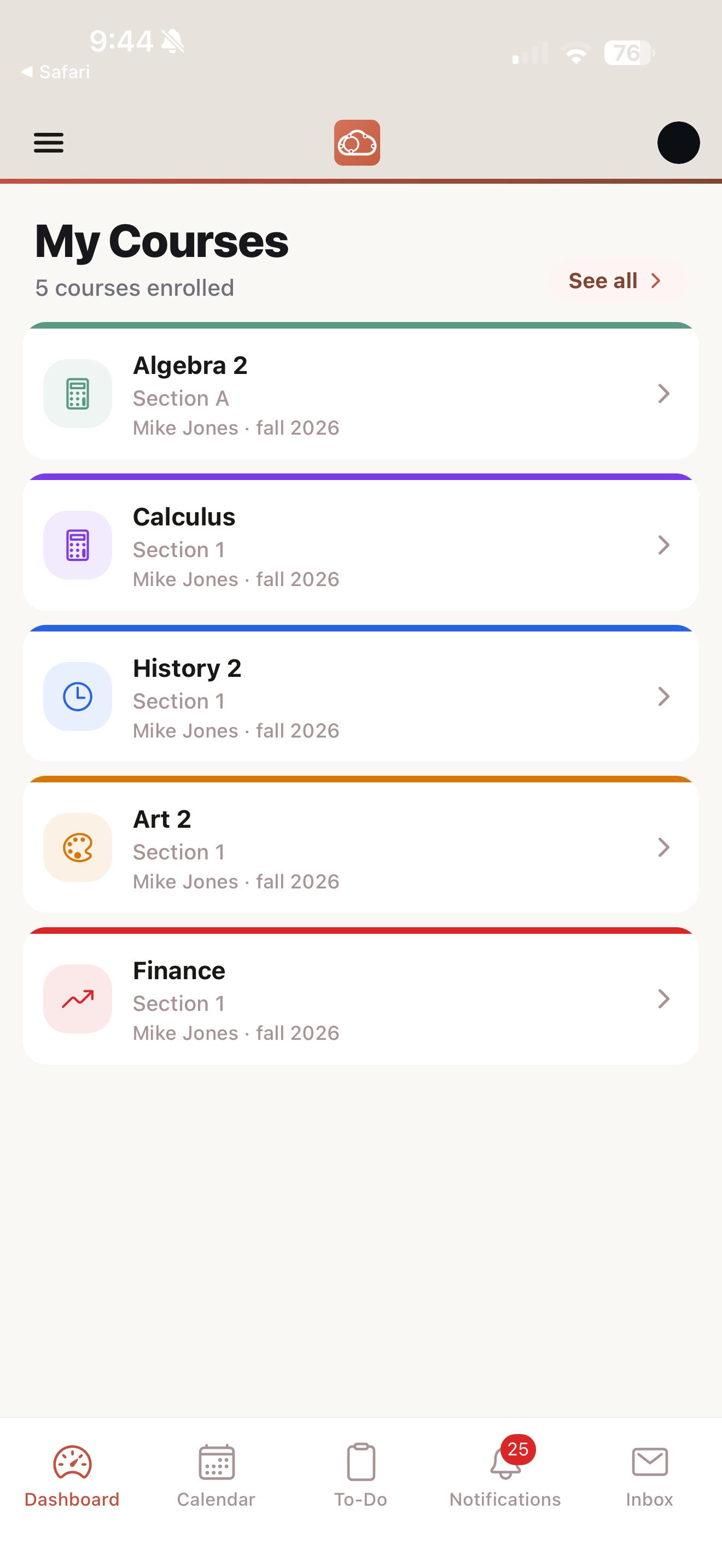
Available on iOS and Android
The NimbusLearn app is available on both the Apple App Store and Google Play Store. Students log in with the same credentials they use on the web and get instant access to all their courses, assignments, and grades.
The app is free to download. If your school uses NimbusLearn, you log in with your school credentials and everything is there — your courses, your grades, your messages. No separate setup required.
What Students Can Do on Mobile
The mobile app isn't a "view-only" companion. Students can do real work from their phones:
- Browse courses and lessons: Open any course, read lesson materials, and view attached resources. PDFs, images, and documents all render cleanly on mobile.
- Submit assignments: Type a text submission directly in the app, or upload a file from your device.
- Take quizzes: Quizzes work fully on mobile. Multiple choice, true/false, short answer — all question types are supported. The interface is optimized for touch, with large tap targets and clear navigation.
- Check grades: View grades for individual assignments or see overall course grades. Grade notifications appear as push alerts, so students know immediately when an instructor has graded their work.
- Receive notifications: New assignments, upcoming deadlines, grade postings, and messages from instructors all trigger push notifications. Students stay informed without having to remember to check the app.
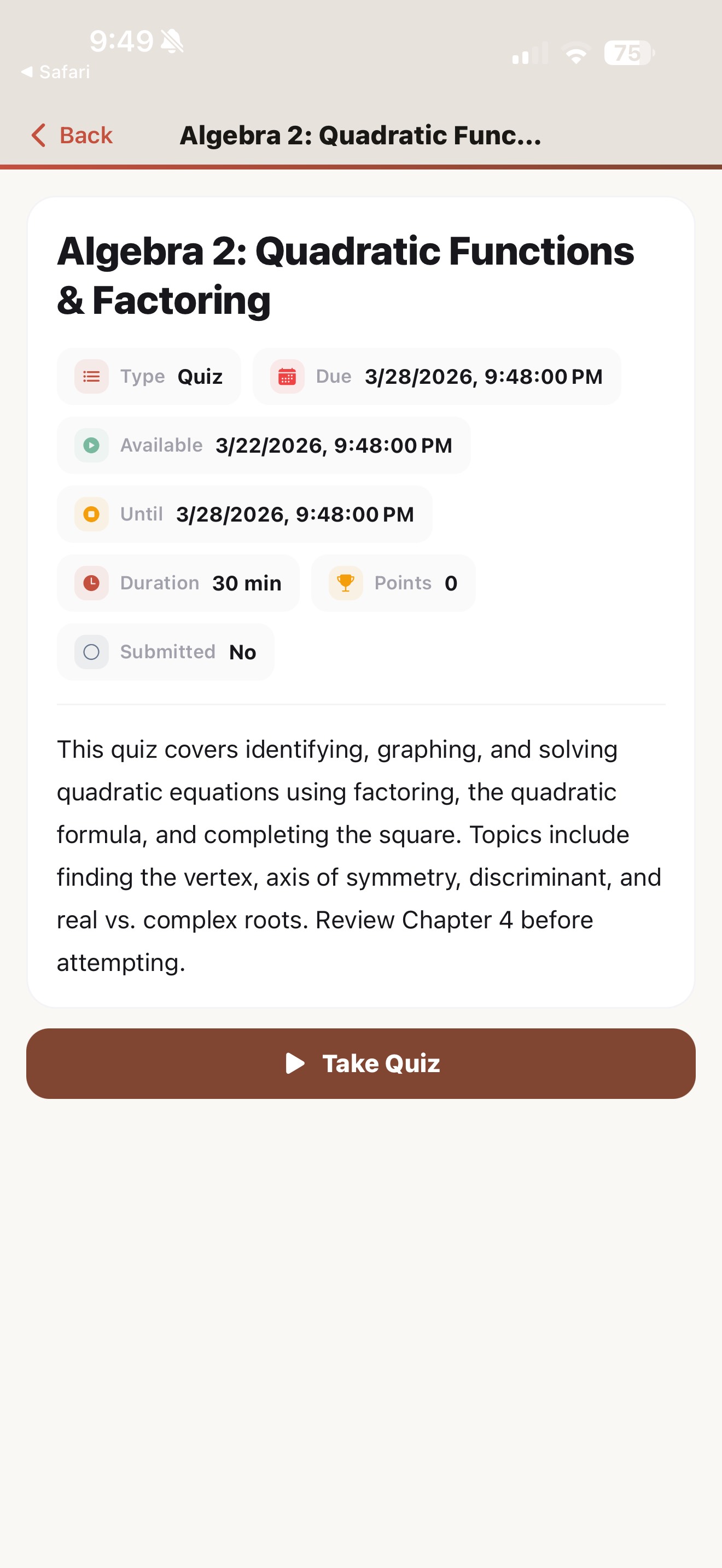
Offline Mode: No Internet? No Problem.
This is the feature that matters most for students in areas with unreliable connectivity — and it's something almost no other school LMS offers.
NimbusLearn's offline mode lets students download course materials, lessons, and even quiz content while they have a connection. They can review materials, read lessons, and prepare for quizzes completely offline. When they reconnect, any work they've done syncs automatically.
How it works: Open a course, tap the download icon next to any lesson or material, and it's saved to your device. The app clearly indicates which content is available offline. When you're back online, any quiz attempts or assignment drafts you worked on will sync to the server.
Think about a student who takes a 45-minute bus ride to school each day. Without offline mode, that's dead time. With offline mode, it's a built-in study session. They can review tomorrow's lesson, re-read materials for an upcoming quiz, or draft an assignment response — all without using mobile data.
For schools in rural areas or regions where home internet access is inconsistent, offline mode turns NimbusLearn from a tool that only works at school into a tool that works everywhere.
How Instructors Benefit from Mobile
The mobile app isn't just for students. Instructors use it in ways we didn't fully anticipate when we built it — and their feedback has shaped how we've improved it.
Check Submissions on the Go
A quick glance at your phone between classes tells you how many students have submitted the assignment due today. You can open submissions, skim through them, and even grade simple tasks right from your phone. For quick-turnaround assignments, some instructors grade during their lunch break and have results back to students by afternoon.
Respond to Messages
When a student messages you asking about their grade on the last test, you don't need to open your laptop, navigate to the school's email system, and compose a formal reply. Open the app, see the message, tap the student's profile to check the grade, and reply — all in under a minute.
Take Attendance from Your Phone
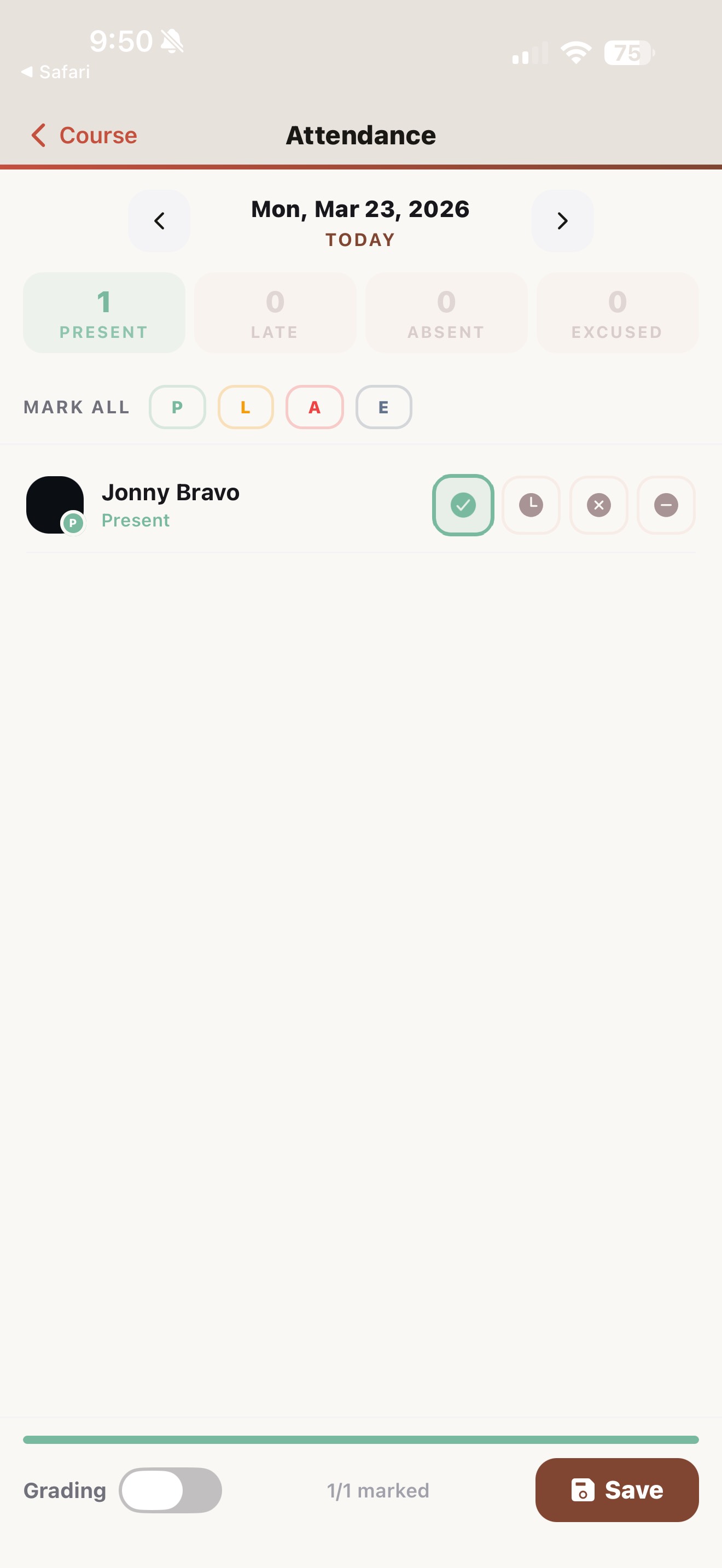
Walk into the classroom, pull out your phone, and tap through attendance while students are settling in. It's faster than carrying an attendance sheet, and the data goes directly into the system. Some instructors tell us this is how they take attendance every single day — they've never once opened the attendance screen on a desktop.
Real Scenarios
To make this concrete, here are two real scenarios we hear about regularly from NimbusLearn users:
Scenario 1: The Student on the Bus
Sara is a 10th grader with a biology quiz tomorrow. She has a 40-minute bus ride home. Before leaving school, she opens the NimbusLearn app and downloads the two lesson PDFs covering the quiz material. On the bus, she reads through both lessons, reviews the key diagrams, and re-reads the section on cell division that she knows will be on the quiz. When she gets home, she takes a practice quiz her instructor posted — this one requires a connection, but she's on home Wi-Fi now. She scores 85% and reviews the two questions she got wrong. Total study time: about an hour, half of which happened on a bus with no internet.
Scenario 2: The Instructor During Commute
Mr. Hassan teaches English to four sections of 9th graders. His students submitted short paragraph responses last night. During his morning commute (he rides the metro), he opens SpeedGrader on his phone and grades one section — 22 students, each with a 3-4 sentence paragraph. He types quick feedback, assigns scores, and finishes the section in about 15 minutes. By the time he arrives at school, one section is already graded and students have their feedback. He grades the remaining three sections during his free period using the desktop, but that first section was done before the school day even started.
Arabic/RTL support: The mobile app fully supports Arabic with right-to-left layout. Students and instructors can switch the interface language in settings — all navigation, labels, and content adapt automatically.
Download the App
The NimbusLearn mobile app is free on both platforms. If your school is already using NimbusLearn, download the app and log in with your school credentials — everything syncs automatically. If your school isn't using NimbusLearn yet, start a free trial and your students can be on the app the same day.
Learning doesn't stop when the bell rings. With the right tools in their pocket, students can keep going — wherever they are, whenever they're ready.