SpeedGrader is one of those features where people either use it the basic way — open submission, type a grade, click next — or they discover the depth of it and wonder how they ever graded without it. This guide is for both groups. Whether you're new to SpeedGrader or you've been using it for a while, there are almost certainly workflows here that will make your grading sessions faster and your feedback more useful.
What SpeedGrader Actually Does
At its core, SpeedGrader is a grading interface designed around one principle: minimize clicks between you and the next graded assignment. When you open SpeedGrader for an assignment, you see the first student's submission on the left side of the screen and your grading tools on the right. You read, you grade, you click "Next Student," and the next submission loads instantly. No page refreshes. No navigating back to a list.
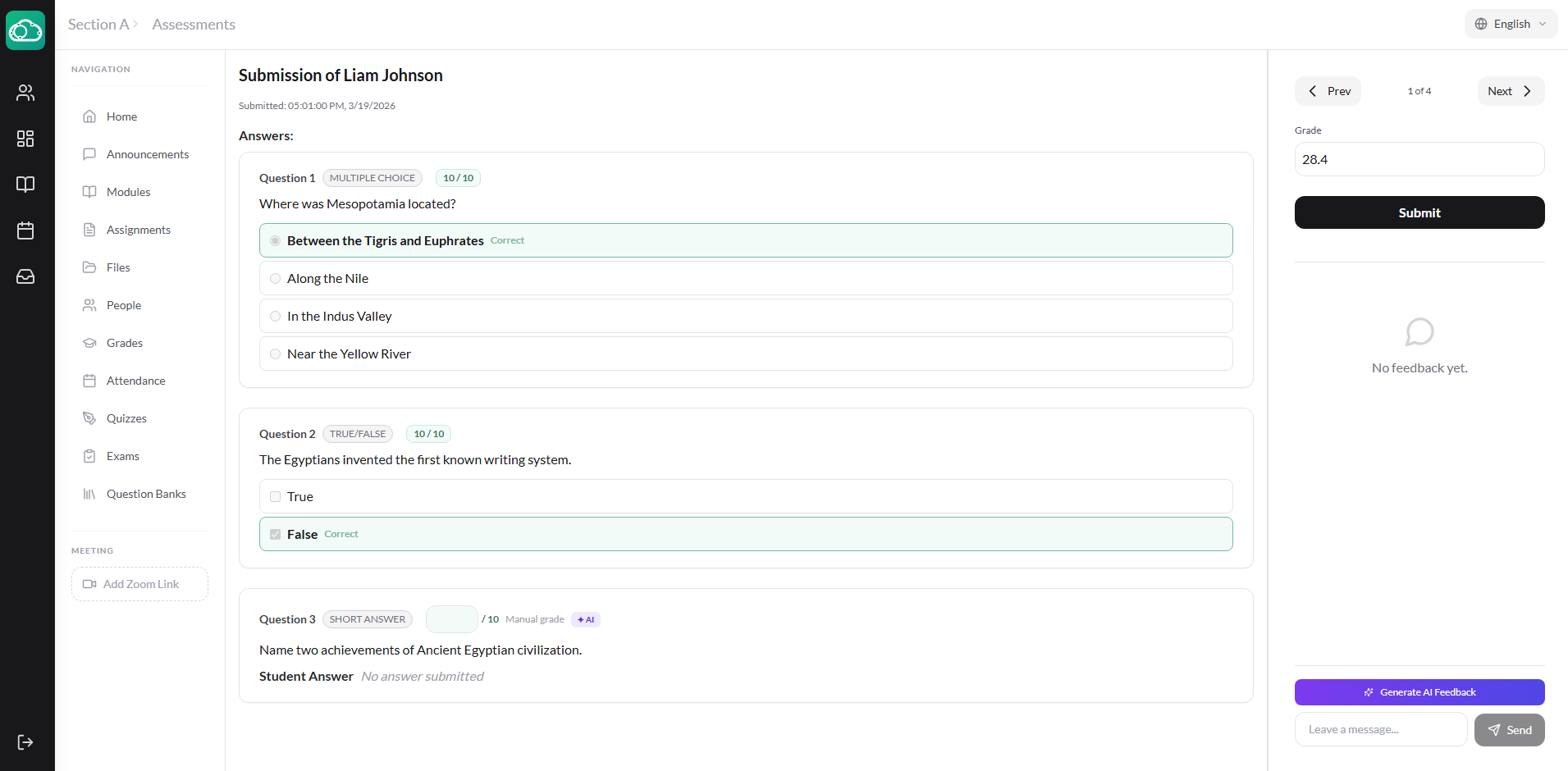
The difference might seem small on paper, but in practice it eliminates the constant friction that makes grading feel so tedious. You get into a flow state. And that's exactly the point.
Tip 1: Try AI-Assisted Grading
This is the single most impactful thing you can do to speed up your grading. NimbusLearn's SpeedGrader includes an optional AI grading assistant that can suggest a grade for assignment submissions.
When you're viewing a student's submission, click Suggest Grade with AI. The AI analyzes the submission against the assignment description and suggests a score. You review the suggestion, adjust if needed, and submit the grade. It's especially useful for large classes where you need to maintain consistency across dozens of submissions.
Pro tip: AI suggestions work best when your assignment has a clear, detailed description. The more specific your instructions, the better the AI can evaluate whether the student addressed the requirements.
Tip 2: Learn the Keyboard Shortcuts
Once you're in SpeedGrader, your hands shouldn't need to leave the keyboard much. Here are the shortcuts that matter most:
- → (Right Arrow) — Next student
- ← (Left Arrow) — Previous student
- G — Jump to the grade input field
- C — Open the comment box
- Enter (in grade field) — Save grade and advance
The workflow becomes: read submission → press G → type score → press C → type quick comment → press → to move on. Once you build the muscle memory, you can grade a straightforward assignment in under 30 seconds per student.
For a class of 25 students, that's about 12 minutes. Compare that to the 45-60 minutes it typically takes with paper-based grading and manual grade entry.
Tip 3: PDF Annotations vs. Submission Comments
SpeedGrader gives you two places to leave feedback, and knowing when to use each one makes your comments more useful to students.
PDF annotations are attached directly to the student's document. When a student submits a PDF, you can annotate it right in SpeedGrader. Use annotations for specific observations: pointing out a grammar issue, marking a well-constructed argument, or highlighting an area that needs improvement.
Submission comments go in the threaded comment section below the submission. This is for big-picture feedback: how well the student addressed the prompt, what they should focus on improving, what they did well overall. Both you and the student can continue the conversation in this thread.
Rule of thumb: If the feedback only makes sense when read alongside a specific part of the document, use an annotation. If it applies to the submission as a whole, put it in the comments thread. Students process both types differently — annotations feel precise, comments feel like a conversation.
Tip 4: Grading Text Submissions vs. File Uploads
NimbusLearn supports both text-based submissions (typed directly into the platform) and file uploads (PDFs, Word documents, images). SpeedGrader handles them differently, and knowing the difference helps you plan.
Text submissions render directly in SpeedGrader. You can highlight text, leave inline comments, and read everything without downloading anything. This is the fastest grading experience.
File uploads are previewed in SpeedGrader when possible (PDFs and images display inline). For Word documents, you'll see a rendered preview. You can still leave overall feedback and assign grades without downloading the file.
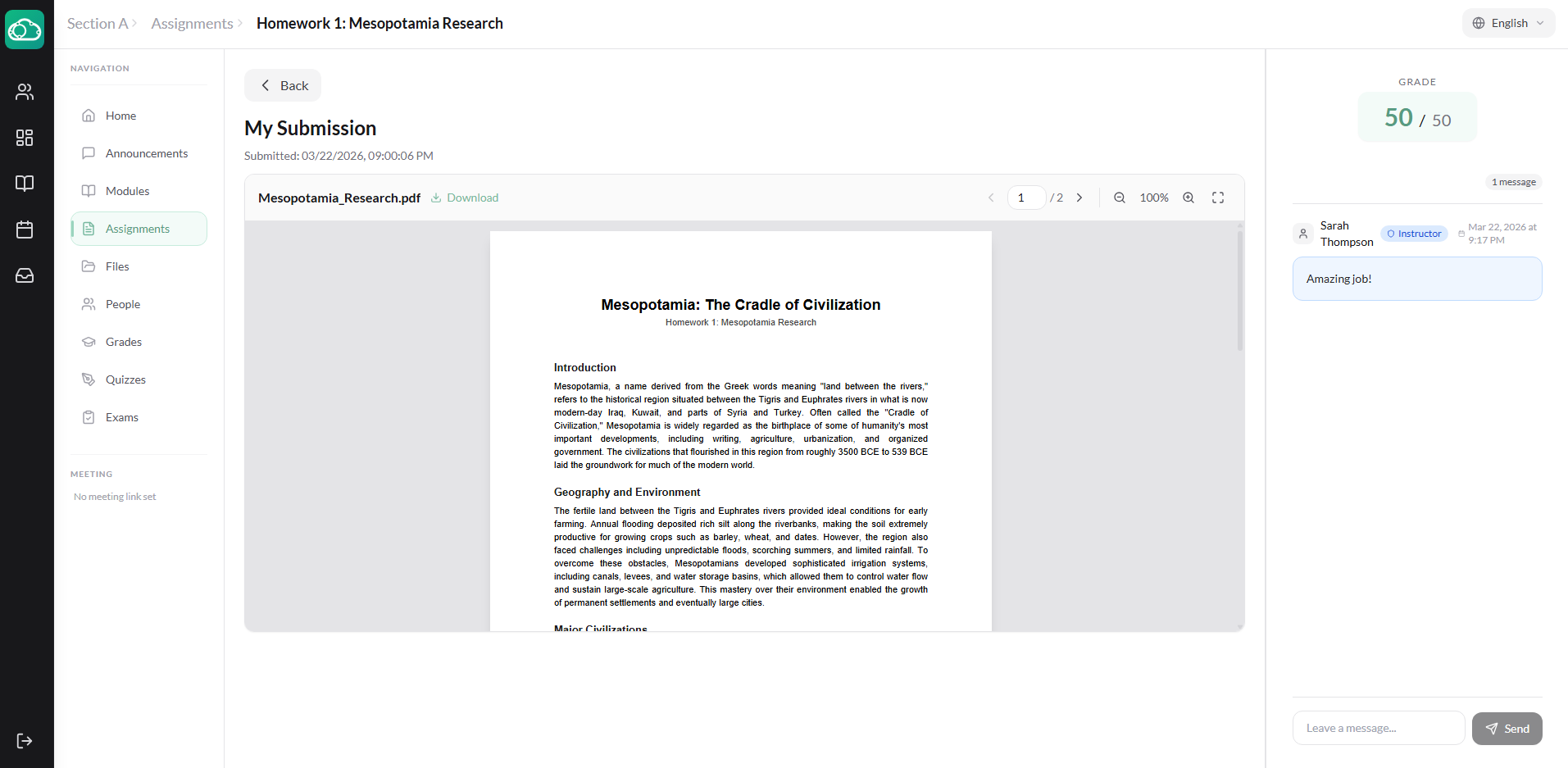
If you have a choice in the matter, consider asking students to submit as text for shorter assignments (paragraphs, short answers) and as file uploads for longer formatted work (lab reports, research papers). This gives you the best of both worlds.
Tip 5: Use Plagiarism Checking
For written assignments where originality matters, SpeedGrader includes a built-in plagiarism checker. Click Run Plagiarism Check on any submission to get a similarity score — a percentage indicating how much of the text matches other sources.
The similarity score is color-coded: green for low similarity (likely original work), amber for moderate, and red for high similarity that warrants a closer look. Use this alongside the student's submission to make informed decisions about grading.
Running a plagiarism check takes just a few seconds per submission and can save you from lengthy manual investigation later.
Tip 6: Write Better Feedback, Faster
The biggest time sink in grading isn't reading submissions — it's writing feedback. And the biggest trap instructors fall into is writing the same feedback over and over. If you find yourself typing "needs more evidence to support this claim" on every other paper, there's a better way.
Keep a mental (or actual) list of your three to four most common feedback points for each assignment type. When you see the issue, drop the comment quickly and move on. Don't write a paragraph of feedback when a sentence will do. Students rarely read long feedback comments anyway — they scan for what they got wrong and what to fix.
Good feedback is specific and actionable:
- Weak: "Good job."
- Better: "Strong thesis statement. Your second body paragraph could use a specific example — the claim about economic impact needs data to back it up."
The second version takes ten seconds longer to type but gives the student something concrete to work on. And with SpeedGrader's inline comments, you can place that feedback right next to the paragraph in question so the student knows exactly what you're referring to.
A Real Grading Workflow
Here's what a complete grading session looks like when you put these tips together:
- Before grading: Make sure the assignment description is clear — this also helps if you want to use AI grade suggestions. Open SpeedGrader from the assignment page.
- First pass: Read the first two or three submissions without grading. This calibrates your expectations — you'll see the range of quality and can mentally set your benchmarks.
- Grading flow: Start from the beginning. Read each submission, annotate PDFs if needed, add a comment, assign a score, and advance to the next student. Use AI suggestions to speed up scoring. Aim for 60-90 seconds per student on typical assignments.
- Excused submissions: Mark submissions as excused for students with documented absences or accommodations. Excused items are excluded from grade calculations.
- Review: Check the gradebook after your session. If something looks off — say, most of the class scored below 60% — that might signal a problem with the assignment or the instruction, not the students.
Time benchmark: A class of 25 students submitting a one-page essay should take about 25-35 minutes to grade with this workflow. Short-answer assignments and completion tasks are even faster — often under 10 minutes for a full class.
SpeedGrader isn't magic — you still have to read the work and use your professional judgment. But it strips away every unnecessary step between you and the actual grading. And over the course of a school year, that adds up to dozens of hours you get back.
If you haven't tried it yet, open one of your recent assignments in SpeedGrader and go through the first five submissions. You'll feel the difference immediately.