Navigating to Attendance
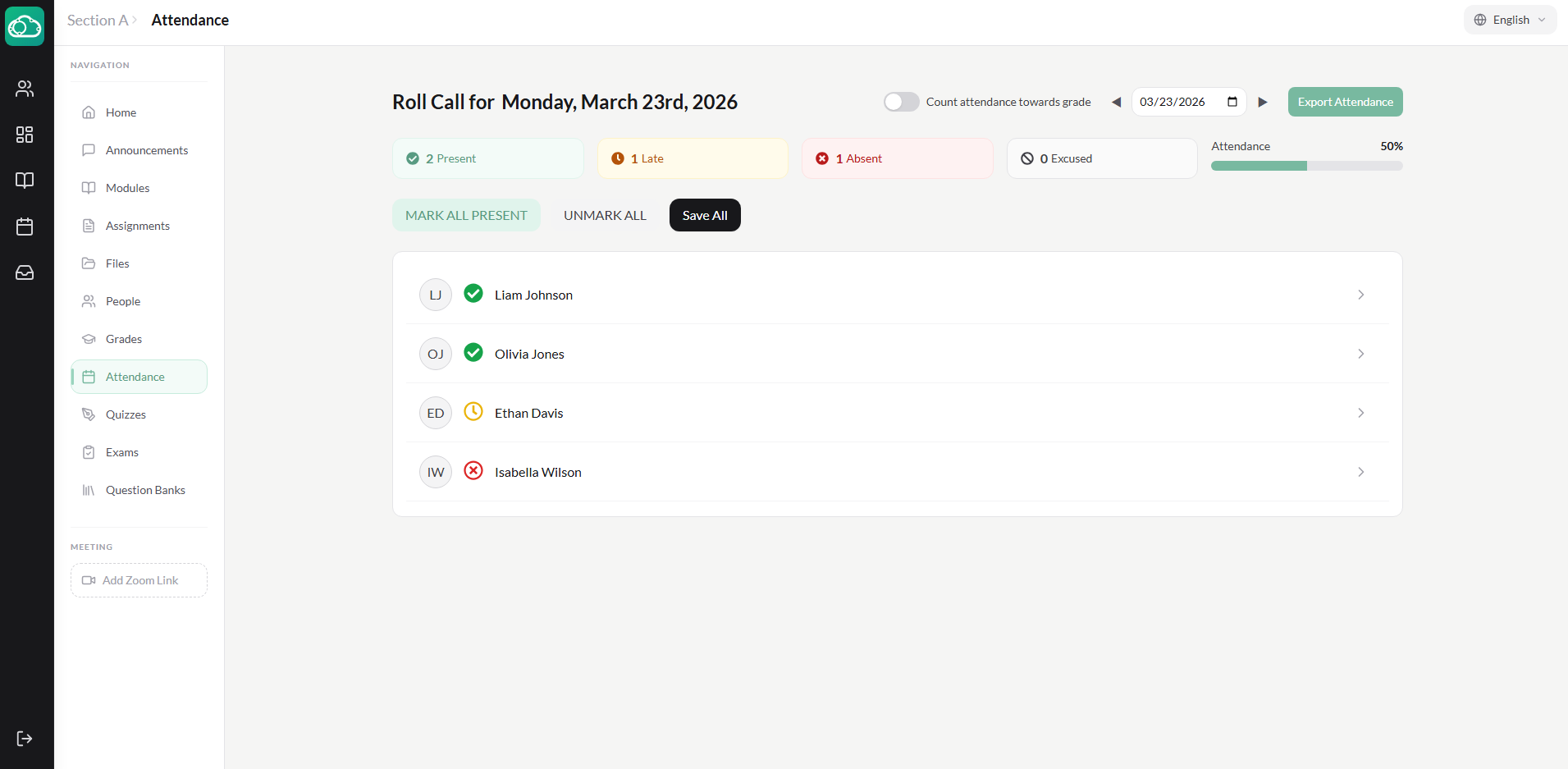
Open any course section and click the Attendance tab in the section navigation. This opens the daily attendance view — a roster of all enrolled students for the selected date.
Selecting a Date
At the top of the attendance page, use the date picker to select the date you want to take attendance for. It defaults to today's date. Use the previous/next arrows to move between days quickly.
Marking Students
The attendance roster lists all enrolled students. Each student has a status button that cycles through four states when clicked:
- Not marked (default) — No status has been set yet.
- Present — The student is in class.
- Late — The student arrived after the start of class.
- Absent — The student did not attend.
- Excused — The student has an approved reason for missing class. Excused absences are tracked separately.
Click the status button next to a student's name to cycle through the statuses. After marking all students, click the Save All button to record attendance for the selected date.
Bulk Marking
On days when most students are present, use the bulk action buttons at the top of the roster:
- Click Mark All Present to set every student to Present in one click.
- Then adjust individual students who are late, absent, or excused.
- Click Save All to record the attendance.
You can also click Unmark All to reset all statuses back to unmarked.
Attendance Summary
At the top of the attendance page, summary badges display the count for each status for the selected date:
- Total Present, Late, Absent, and Excused counts.
- The overall attendance percentage for the day.
Per-Student Statistics
Click the expand chevron next to any student's name to open their individual stats panel. This shows:
- Total sessions — How many days attendance has been taken.
- Counts for each status: Present, Late, Absent, Excused.
- Their overall attendance percentage.
Attendance and Grades
NimbusLearn can factor attendance into the student's final course grade. To enable this:
- Toggle Count Towards Grade on the attendance page.
- The section settings let you configure the starting attendance score and how each status (Present, Late, Absent, Excused) affects the score.
- The attendance grade weight is configured school-wide by the admin under Settings → Grading.
Attendance is taken per day, per section. Each section has its own attendance records independent of other sections the student may be enrolled in.
Exporting Attendance Data
Click the Export CSV button on the attendance page to download a spreadsheet of all attendance records for the section. This is useful for sharing with administrators or for your own record-keeping.