Gradebook Overview
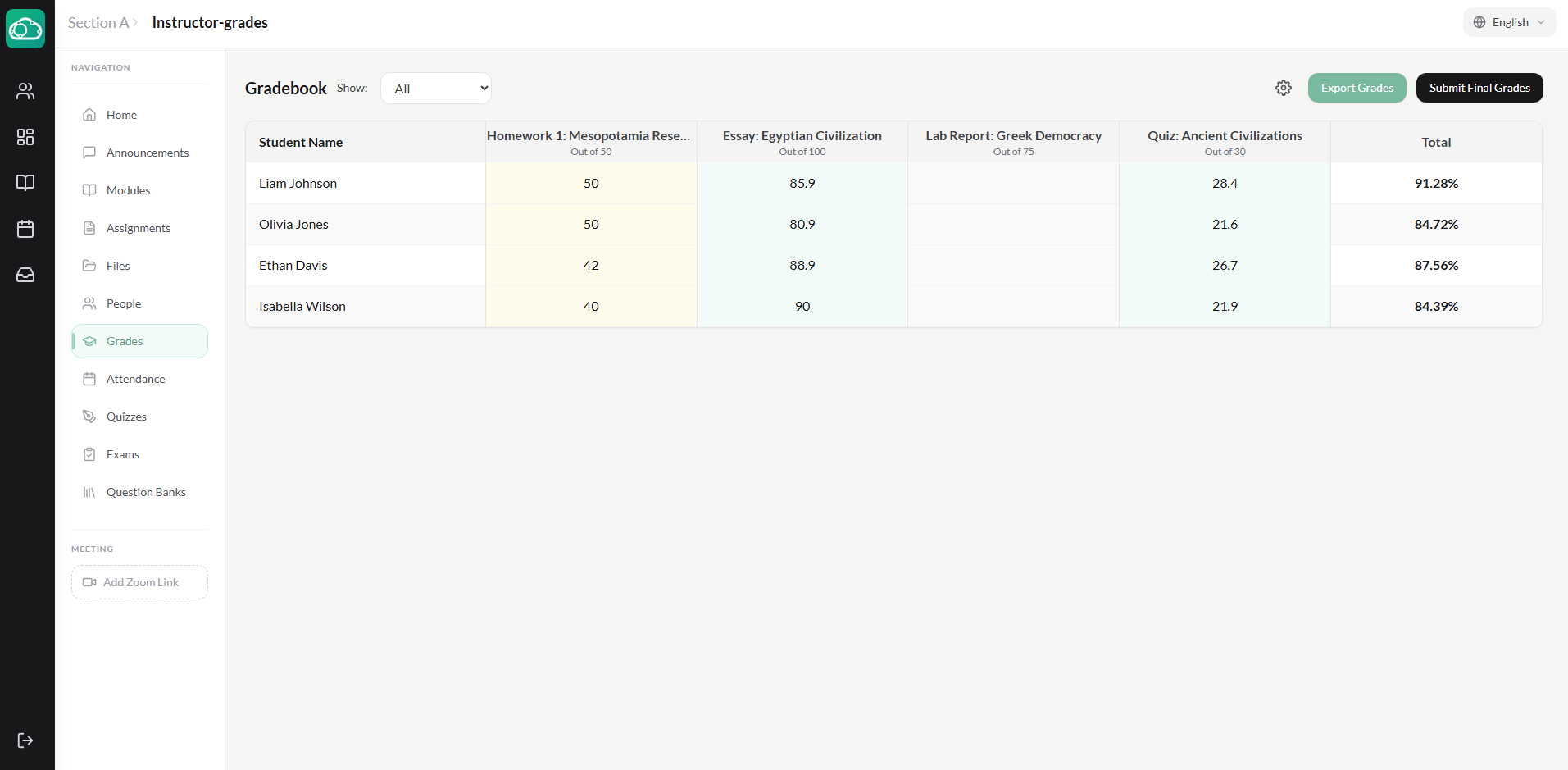
The NimbusLearn gradebook is a spreadsheet-style view where rows represent students and columns represent graded items (assignments, quizzes, and exams). Open it by navigating to your course section and clicking the Grades tab in the navigation.
At a glance, you can see every student's score for every item, their running course grade, and whether submissions are late or excused. The gradebook automatically calculates each student's overall grade based on their scores across all graded items.
How Grades Are Calculated
The overall course grade is calculated based on the total points earned across all graded items. NimbusLearn uses a total points calculation — every assignment and assessment contributes proportionally to the number of points it's worth.
Additional factors that affect the final grade:
- Late Penalties — If late penalties are enabled for the section, late submissions have a per-day deduction applied, down to the configured lowest possible grade.
- Attendance — If attendance grading is enabled for the section, attendance contributes a percentage of the final grade based on the configured weight and status weights.
- Excluded Items — Assignments marked as "Exclude from Final Grade" are not factored into the overall grade.
- Excused Submissions — Excused items are excluded from calculations entirely.
Grading Scale
The grading scale is configured school-wide by the admin under Admin → Settings → Grading. It defines how percentage scores map to letter grades (e.g., A = 90%+, B = 80%+, etc.).
The admin can also configure:
- Show Letter Grades — Whether letter grades are displayed alongside percentages.
- Show GPA — Whether GPA values are calculated and displayed.
- GPA Scale — The maximum GPA value (typically 4.0).
- Default Passing Grade — The minimum percentage required to pass.
Automatic Grade Sync
When you grade an assignment in SpeedGrader or a student completes an auto-graded quiz, the score syncs to the gradebook automatically — no manual entry needed. The gradebook updates in real time, and the student's running total recalculates.
Final Grade Approval
If the school admin has enabled Require Grade Approval in the promotion settings, final course grades must be approved by an administrator before students can be promoted.
- Instructors submit final grades through the gradebook.
- Admins review and approve final grades from the Admin → Approvals page or directly in the Admin → Reports student detail view.
Handling Excused Assignments
Not every student will complete every assignment. Instructors can mark submissions as Excused in SpeedGrader to exclude them from grade calculations entirely. The total grade is then computed from the remaining items only. Use this for students with documented absences or accommodations.
Late Policy Settings
Each section can configure its own late penalty settings:
- Late Penalty Enabled — Toggle whether late penalties apply.
- Late Penalty Per Day — The percentage deducted per day the submission is late.
- Lowest Possible Grade — The minimum grade after late deductions (prevents a single late submission from going to zero).
Individual assignments can override the section default. Instructors can also manually override the late status, late days, and final grade on individual submissions through SpeedGrader.
Students can view their own grades from the Grades tab within their course section. They see their scores for each item and their overall course grade.