Downloading the App
The NimbusLearn mobile app is available for both iOS and Android devices. It is free to download and works with any active NimbusLearn school account.
- Open the App Store (iPhone/iPad) or Google Play Store (Android).
- Search for NimbusLearn.
- Tap Install (Android) or Get (iOS) to download the app.
- Once installed, tap the NimbusLearn icon on your home screen to open the app.
The app requires iOS 15 or later, or Android 10 or later. Make sure your device is running a supported operating system version before installing.
Logging In with Your School Credentials
When you first open the app you will be asked to find your school.
- On the welcome screen, type your school's name or NimbusLearn URL (for example, yourschool.nimbuslearn.com).
- Select your school from the search results.
- Enter the same username and password you use on the web version.
- Tap Sign In.
The app will remember your school after the first login so you will not need to search for it again.
Navigating the Mobile Dashboard
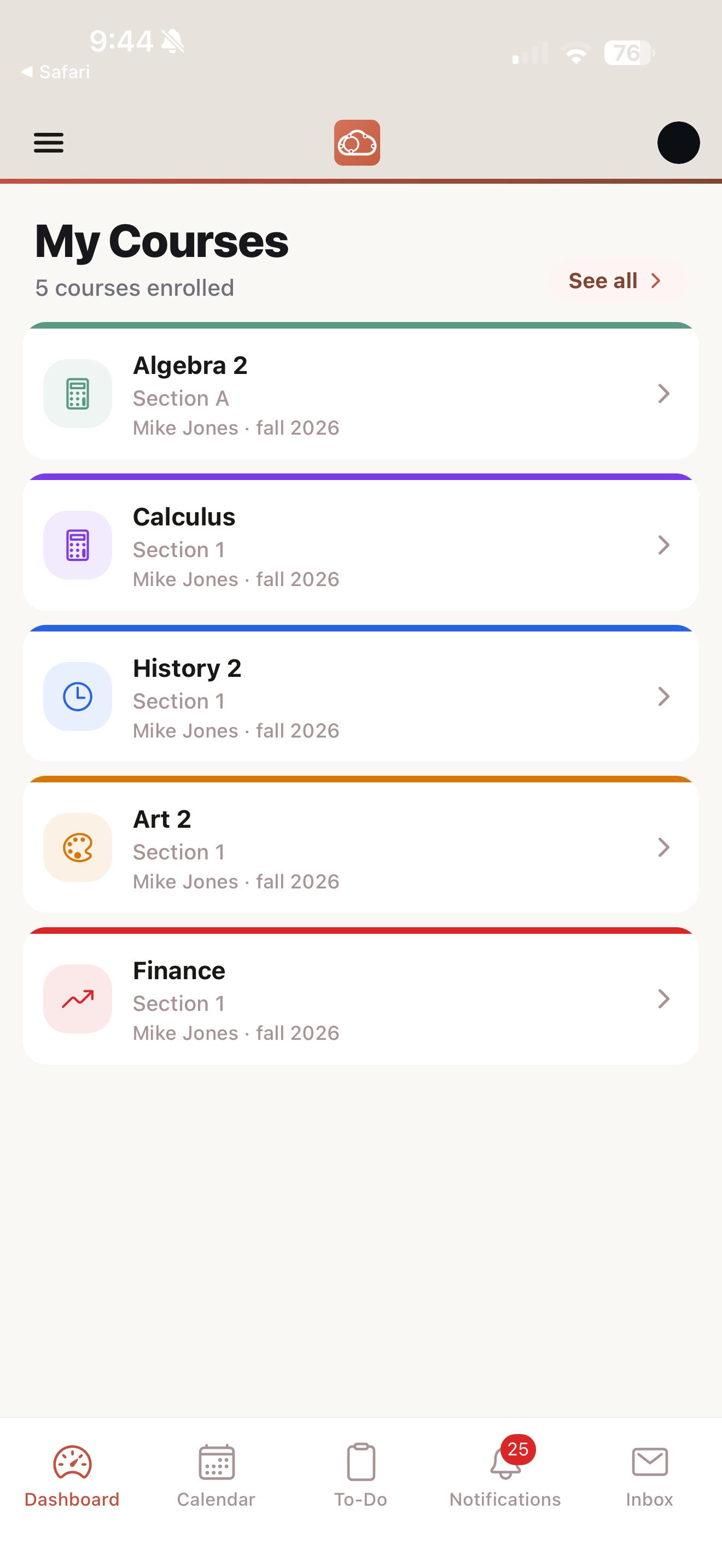
The mobile dashboard mirrors the web version but is optimized for smaller screens. After logging in you will see:
- Course Cards — swipe horizontally to browse your enrolled courses.
- To-Do List — upcoming assignments and quizzes sorted by due date.
- Notifications Bell — tap the bell icon at the top-right to see recent alerts.
The bottom navigation bar provides quick access to the five main areas: Dashboard, Courses, Calendar, Notifications, and Inbox. Tap any icon to switch between sections instantly.
Viewing Courses and Modules
Tap Courses in the bottom bar to see a list of all your enrolled courses. Tap a course to enter it. Inside the course, you will find tabs for Modules, Assignments, Grades, and Announcements.
The Modules tab lists all course modules in order. Tap a module to expand it and see individual items — lessons, files, assignments, and quizzes. Tap any item to open it. Pages render as scrollable content, and files open in the built-in document viewer.
Downloading Content for Offline Access
One of the most useful mobile features is the ability to download course content for offline access — perfect for studying on the bus, during travel, or anywhere without reliable Wi-Fi.
- Open a course and navigate to the Modules tab.
- Tap the download icon (downward arrow) next to any module to save all of its pages and files to your device.
- To download an individual file, open the file and tap Save for Offline.
- Downloaded content is indicated by a small checkmark on the download icon.
You can manage your offline content from Settings > Offline Content, where you can see how much storage is being used and remove items you no longer need.
Downloaded content updates automatically whenever you reconnect to the internet. If your instructor changes a page, the updated version will sync the next time you are online.
Submitting Assignments from Your Phone
You can submit assignments directly from the mobile app, which is especially handy for quick submissions or when you are away from your computer.
- Open the assignment from the course or from your To-Do list.
- Read the instructions and tap Submit Assignment.
- Choose your submission type — File Upload or Text Entry.
- For file uploads, you can browse your device storage or select files from your device.
- Tap Submit to send your work.
Taking Quizzes on Mobile
Quizzes work seamlessly on the mobile app. When you open a quiz, the app enters a focused mode that hides distractions. Swipe between questions or use the question navigator at the bottom to jump to specific questions. A timer appears at the top if the quiz is timed. When you are done, tap Submit Quiz and confirm.
For timed quizzes, make sure you have a stable internet connection before starting. If you lose connection mid-quiz, the app will save your answers locally and attempt to submit them when you reconnect — but the timer continues to run on the server.
Viewing Grades
Tap into any course and select the Grades tab to see your scores for that course. Each graded item shows your score and the total points possible.
Receiving Push Notifications
Stay informed without constantly checking the app. NimbusLearn sends push notifications for events that matter to you:
- New assignments posted by your instructor.
- Upcoming due date reminders (24 hours and 1 hour before).
- Grades posted for your submissions.
- New announcements from your courses.
- Direct messages from instructors or classmates.
You can customize which notifications you receive in Settings > Notifications. Toggle individual categories on or off based on your preferences.
Switching Between Courses
While inside a course, tap the back arrow at the top-left to return to your course list, or tap Courses in the bottom bar. You can also swipe right from the left edge of the screen to quickly go back. The app remembers where you left off in each course, so you can pick up right where you stopped.
Arabic and RTL Support
The NimbusLearn mobile app fully supports Arabic with right-to-left (RTL) layout. The interface language can be switched in the app settings. All navigation, labels, and content automatically adjust to the correct text direction.
Syncing When Back Online
The NimbusLearn app is designed to handle intermittent connectivity gracefully. Any actions you take while offline — such as reading downloaded content, drafting text submissions, or viewing cached grades — are preserved. When your device reconnects to the internet, the app automatically syncs in the background:
- Draft submissions are uploaded and queued for processing.
- New grades, announcements, and content updates are pulled down.
- Notification badges update to reflect the latest information.
A small sync indicator appears briefly at the top of the screen when synchronization is in progress. If a sync fails (for example, due to a weak connection), the app will retry automatically within a few minutes.