Quizzes vs. Exams
NimbusLearn treats quizzes and exams as two types of the same assessment system. Both use the same question types, grading, and configuration options. The main difference is organizational — use "Quiz" for shorter, lower-stakes assessments and "Exam" for formal, higher-stakes evaluations.
All settings (time limit, proctoring, late submissions) can be configured identically on both types.
Creating a New Assessment
- Navigate to your course section and click Quizzes or Exams in the navigation.
- Click + Create Quiz or + Create Exam.
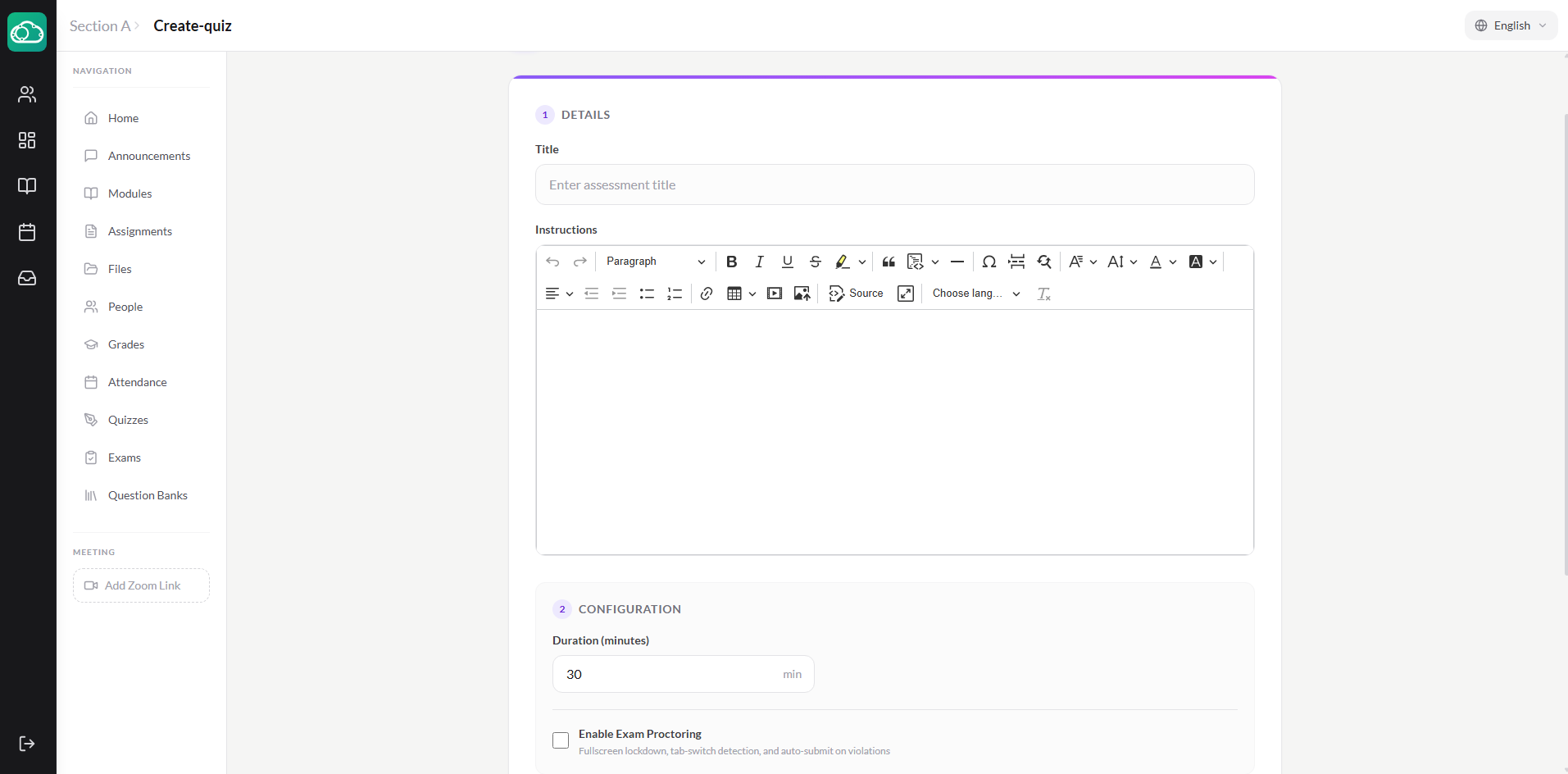
- Enter the basic details:
- Title — e.g., "Unit 3 Vocabulary Quiz."
- Description — Instructions displayed at the top before the student begins.
- Points — The total points for the assessment.
- Duration — Set a time limit in minutes (leave blank for untimed). A visible countdown timer appears for students.
- Date — When the assessment is scheduled.
- Available From — When the assessment becomes available to students.
- Available Until — The final date for submissions. Toggle Allow Late to accept late submissions.
- Click Save, then proceed to add questions.
Question Types
NimbusLearn supports seven question types. Mix and match them within a single assessment to test different levels of understanding.
Multiple Choice
Present answer options with one correct answer. Write clear, plausible distractors to make the question meaningful. Set the point value for each question.
True / False
A two-option question. Write a declarative statement and mark it as true or false. These are auto-graded instantly.
Checkbox (Select All That Apply)
Similar to multiple choice, but students can select multiple correct answers. Mark one or more options as correct. This is auto-graded — students must select all correct options and no incorrect ones to earn full points.
Short Answer
Students type a brief text response. Short answer questions require manual grading by the instructor through SpeedGrader.
Matching
Students pair items from two columns. Create prompt-match pairs (e.g., term → definition). Matching questions are auto-graded: students earn points based on correct matches.
Fill in the Blank
Write a sentence with one or more blanks. For each blank, define the accepted answer(s). The system checks student responses against your answers.
File Upload
Students upload a file as their answer — useful for diagrams, handwritten work, or creative assignments. File upload questions require manual grading.
Questions that require manual grading (Short Answer and File Upload) will show as "needs manual grading" in SpeedGrader until the instructor assigns a score.
Building a Question Bank
A question bank is a reusable collection of questions stored at the section level. Banks save time and let you create varied assessments by pulling random subsets of questions.
- Go to Question Banks in the section navigation.
- Click + New Bank and give it a name and description (e.g., "Biology Chapter 4 — Cell Division").
- Add questions to the bank manually using the same question types listed above.
When creating an assessment, you can link it to a question bank and specify how many questions to pull. Each student receives a different random subset of questions from the bank, reducing the risk of copying.
Proctoring
For high-stakes assessments, NimbusLearn includes built-in proctoring to help maintain academic integrity:
- Enable Proctoring — When turned on, the assessment runs in a fullscreen mode. The system monitors for suspicious activity.
- Tab Switch Detection — If a student switches to another browser tab or window during the assessment, it's recorded as a proctoring violation.
- Fullscreen Exit Detection — If a student exits fullscreen mode, it's recorded as a violation.
- Maximum Violations — Set the maximum number of violations allowed before the assessment is automatically submitted (e.g., 3 violations).
Instructors can review all proctoring violations for each student's submission in SpeedGrader, including timestamps and violation types.
Auto-Grading
Multiple choice, true/false, checkbox, matching, and fill-in-the-blank questions are all auto-graded. After a student submits:
- Their score is calculated instantly for auto-gradeable questions and stored in the gradebook.
- If the assessment contains Short Answer or File Upload questions, the submission is marked as "needs manual grading" until the instructor reviews those questions in SpeedGrader.
Publishing Assessments
Assessments start in draft mode. Toggle Published to make the assessment visible to students. Students can only take the assessment between the Available From and Available Until dates.