Reports Overview
The Reports page is the admin's central hub for viewing student academic data. Access it by navigating to Admin → Reports from the sidebar. The landing page shows a school-wide overview with search, filtering, and export tools.
Reports Landing Page
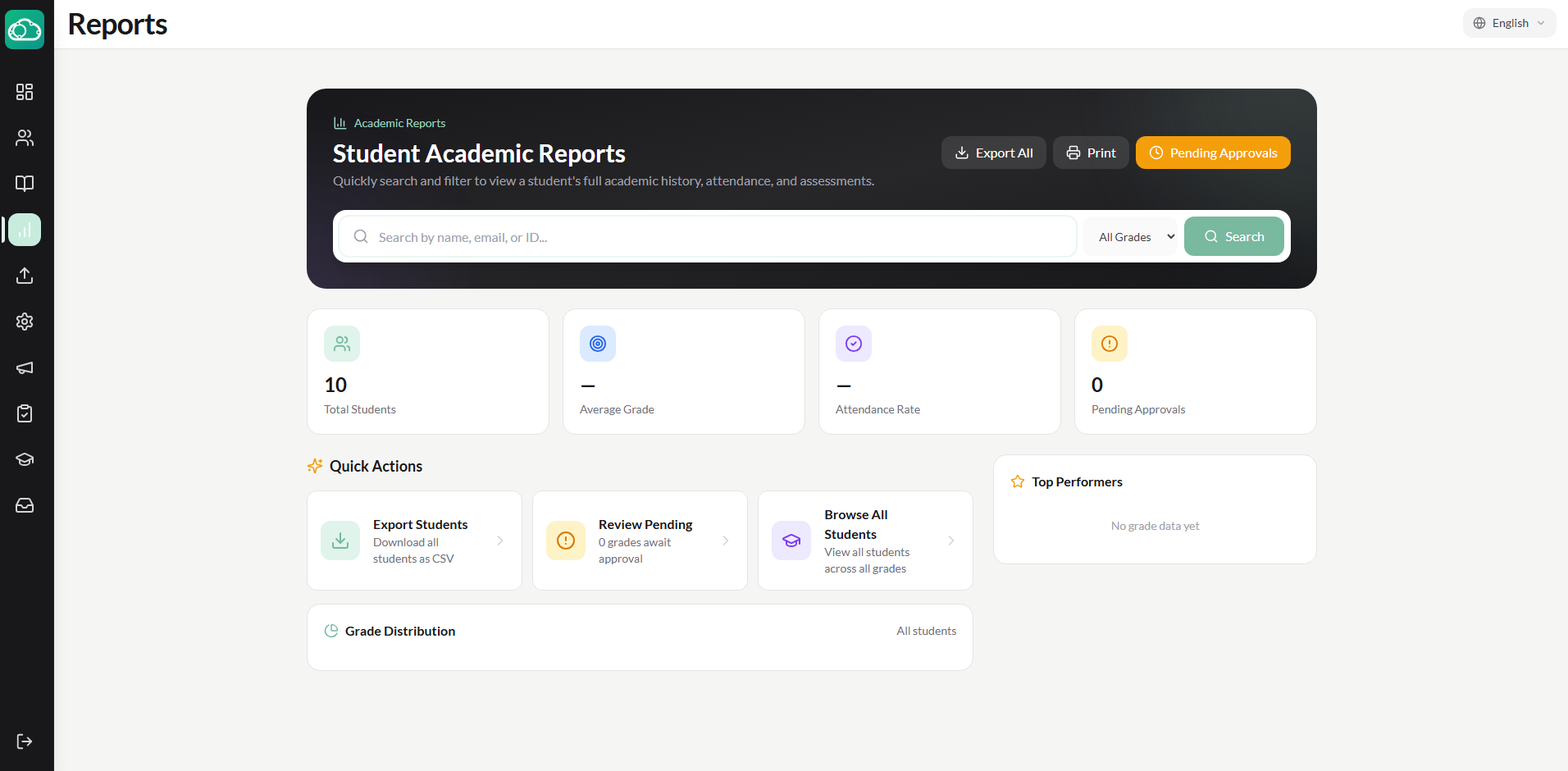
The reports landing page displays:
- Search — Search for students by name to pull up their academic records.
- Filter by Grade Level — Narrow results to a specific grade level.
- Summary Stats — Total students, average grade, attendance rate, and pending grade approvals.
- Grade Distribution — A bar chart showing the distribution of student grades across letter grade ranges (A through F).
- Quick Actions — Buttons for exporting all student data, viewing pending approvals, and browsing students.
- Top Performers — A list of students with the highest grades.
Student Detail View
Search for a student and click their name to open the detailed student report. The detail view has three tabs:
Summary Tab
Shows the student's current enrollments — each row displays the course name, section, instructor, current grade percentage, and an attendance summary. If grade approval is enabled, admins can approve final grades directly from this view. Archived (past) enrollments are also visible.
Attendance Tab
Displays a per-enrollment attendance table showing every date and the student's status (Present, Late, Absent, Excused) for each course section.
Assessments Tab
Lists the student's quiz and exam scores for each enrollment, including the assessment title, score, and whether it has been graded.
Approving Final Grades
If Require Grade Approval is enabled in the school's promotion settings, admins must approve final grades before students can be promoted. On the student detail Summary tab:
- Review each enrollment's current grade.
- Click the approval checkbox to approve the final grade for that course.
- Admins can also edit grades inline if corrections are needed.
The pending approvals count appears on the reports landing page for quick access.
Grade approvals are also accessible from the dedicated Admin → Approvals page, which lists all enrollments awaiting approval.
Exporting Data
NimbusLearn supports CSV exports for offline analysis and record-keeping:
- Export All Students — Click the export button on the reports landing page to download a CSV of all student records with their grades and enrollment data.
- Export Individual Student — On the student detail view, click the export button to download that student's full academic report as a CSV.
- Print — Use the print button on the student detail view to generate a printable version of the student's report.