What Is SpeedGrader?
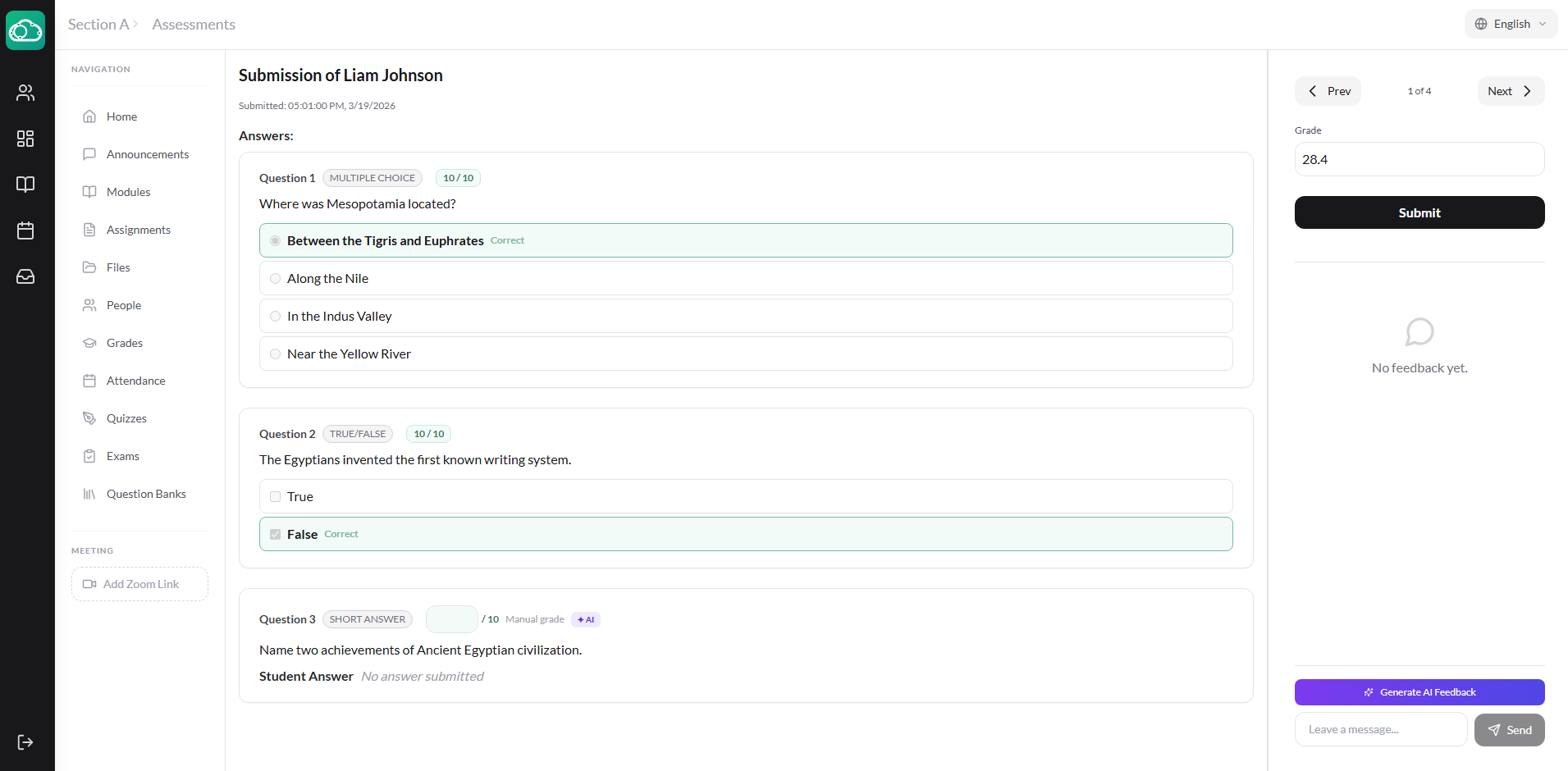
SpeedGrader is NimbusLearn's dedicated grading interface, designed to let you move through an entire class's submissions as quickly as possible. Instead of clicking in and out of individual student pages, SpeedGrader presents each submission in a split-screen view with the student's work on the left and your grading tools on the right.
SpeedGrader works for both assignments and assessments (quizzes and exams), with specialized views for each type.
Opening SpeedGrader
Launch SpeedGrader from the assignment or assessment page by clicking the SpeedGrader button. SpeedGrader opens in a split layout with the submission viewer on the left and the grading panel on the right.
Navigating Between Students
Use the navigation controls to move between students:
- Previous / Next Buttons — Click the arrow buttons to move to the previous or next student in the list.
- Student Dropdown — Click the student name to open a dropdown of all students and jump directly to any submission.
Grading Assignments
For assignment submissions, the left panel shows the student's work inline:
- Text entries display as formatted text.
- PDF files render in a built-in PDF viewer with annotation support.
- Images (PNG, JPG) display inline.
- Videos play directly in the viewer.
- Office documents and CSV files are rendered for inline viewing.
- Other file types show a download link.
In the grading panel, enter the grade (points out of the assignment total) and click Submit Grade.
PDF Annotations
When a student submits a PDF, you can annotate directly on their document using the built-in annotation tools. Annotations are saved and visible to the student when they view their graded submission.
Grading Assessments
For quizzes and exams, SpeedGrader shows a per-question view:
- Auto-graded questions (Multiple Choice, True/False, Checkbox, Matching, Fill in the Blank) show the student's answer alongside the correct answer, with the score already calculated.
- Manually graded questions (Short Answer, File Upload) display the student's response and a score input for you to assign a manual score.
The total score is calculated by combining auto-graded and manually graded question scores.
AI-Assisted Grading (Optional Add-On)
NimbusLearn offers AI-powered grading assistance as an optional add-on:
- Assignment Grading — Click Suggest Grade with AI to get an AI-generated grade suggestion for the current submission. Review the suggestion and apply it, or enter your own grade.
- Assessment Question Grading — For Short Answer questions, AI can suggest scores on a per-question basis, helping you grade open-ended responses faster.
AI grade suggestions are just that — suggestions. Always review them before applying. The AI uses the assignment description and the student's response to generate its recommendation.
Plagiarism Checking (Optional Add-On)
For assignment submissions, you can run a plagiarism check directly from SpeedGrader:
- Click Run Plagiarism Check to analyze the submission.
- A similarity score is displayed as a percentage, color-coded for quick interpretation: green (low similarity), amber (moderate), or red (high).
Proctoring Violations
If an assessment had proctoring enabled, SpeedGrader displays a list of any violations recorded during the student's session — such as tab switches or fullscreen exits — along with timestamps. This helps you evaluate whether the student's submission was completed under appropriate conditions.
Submission Comments
The grading panel includes a threaded comments section where you and the student can exchange feedback. Use this to explain grades, answer questions, or provide guidance for improvement. Comments support text input and create a conversation thread visible to both the instructor and student.
Manual Overrides
SpeedGrader gives instructors full control over grades:
- Mark as Excused — Exclude a submission from grade calculations entirely.
- Override Late Status — Manually mark a submission as on-time or late, regardless of the actual submission timestamp.
- Override Late Days — Set a custom number of late days for penalty calculations.
- Override Final Grade — Set a manual final grade that overrides the calculated grade.
Tips for Efficient Grading
- Use AI suggestions — Let AI handle the initial grade suggestion, then adjust as needed. This is especially useful for large classes.
- Grade one question at a time — For assessments with Short Answer questions, grade the same question across all students before moving to the next question. This improves consistency.
- Add comments — Even brief feedback helps students understand their grades and improve.