Logging In for the First Time
Your school will provide you with a username and password — typically sent via email or handed out by your instructor. To log in, visit your school's NimbusLearn URL (for example, yourschool.nimbuslearn.com) and enter your credentials on the sign-in page.
- Open your web browser and go to your school's NimbusLearn address.
- Enter the username and password provided by your school.
- Click Sign In.
- On your first login you will be asked to set a new password. Choose something memorable and secure (at least 6 characters).
- Once your password is updated, you will be taken directly to your student dashboard.
If you forget your password, click the Forgot Password link on the login page. A reset link will be sent to your school email address. If you still cannot get in, ask your instructor or school administrator for help.
Your Student Dashboard
The student dashboard is the first thing you see after logging in. Think of it as your home base — it gives you a quick snapshot of everything happening across all your courses.
At the top of the dashboard you will find a welcome banner with your name and today's date. Below that, the dashboard is divided into several areas:
- My Courses — a grid of cards showing every course you are enrolled in this term.
- Upcoming Assignments — a list of the next few assignments due, sorted by date.
- Recent Announcements — the latest messages posted by your instructors.
- Calendar Widget — a mini calendar highlighting days with due dates or events.
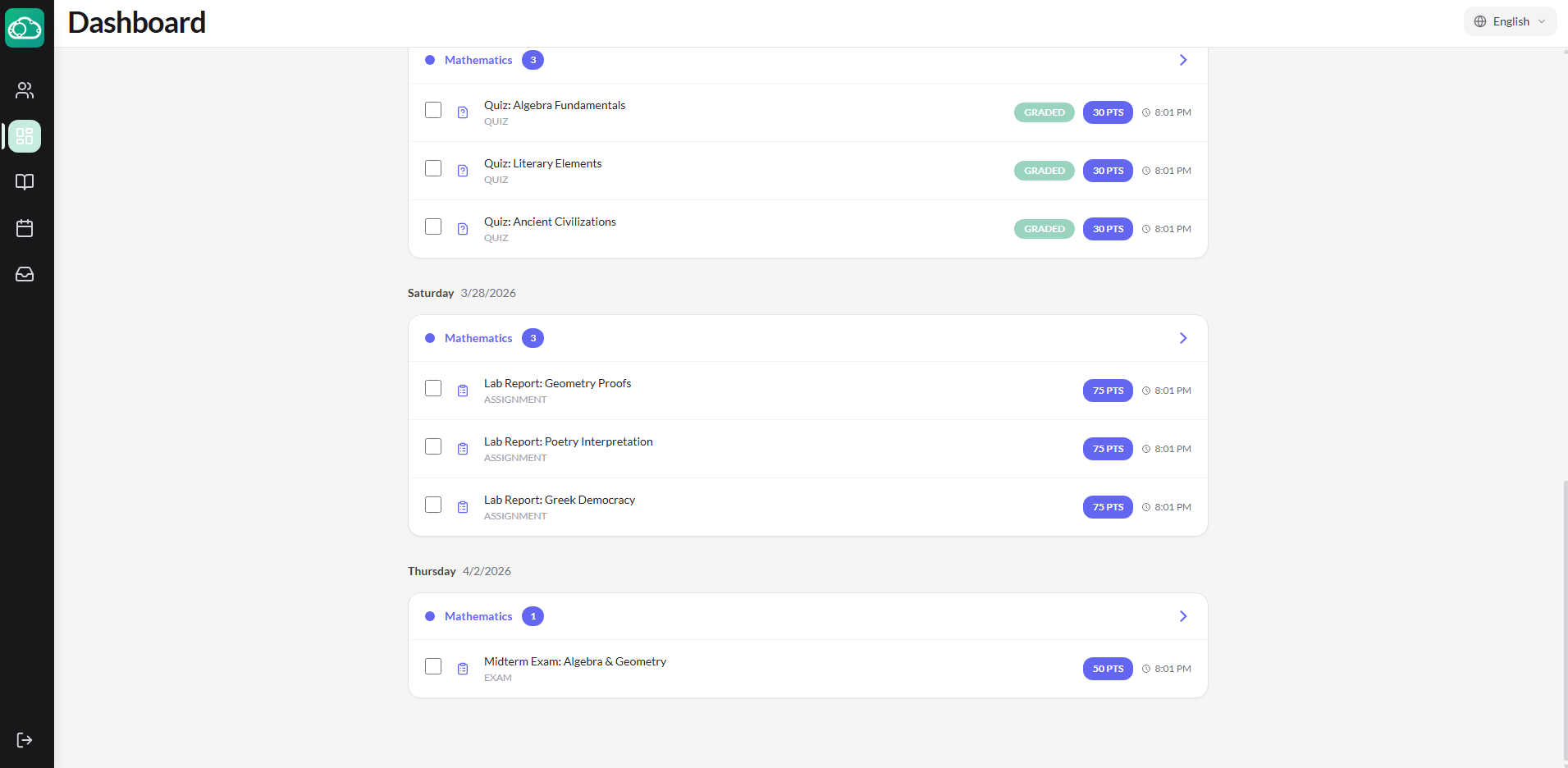
Finding Your Enrolled Courses
Your courses appear as cards on the dashboard under My Courses. Each card displays the course name, the instructor's name, and a color-coded banner. If you are enrolled in many courses you can scroll through them or use the search bar at the top of the section to filter by name.
You can also access a full list of your courses from the left-hand navigation menu by clicking Courses. This view shows courses grouped by term, so if your school runs semesters you will see Semester 1 and Semester 2 listed separately.
Opening a Course
Click on any course card — either from the dashboard or the Courses page — to enter that course. You will land on the Course Home page, which your instructor has set up with an overview of what the course covers, important announcements, and links to the first module.
- From the dashboard, click the course card you want to open.
- The course home page loads, showing the course description and any pinned announcements.
- Use the left sidebar inside the course to jump to Modules, Assignments, Grades, or other sections.
Understanding the Course Home Page
The course home page is designed by your instructor and may look slightly different from course to course. However, most course home pages share these common elements:
- Course Banner — an image or color header at the top with the course title.
- Welcome Message — a short description or set of instructions from your instructor.
- Pinned Announcements — important notices that stay at the top of the page.
- Quick Links — buttons or links to the syllabus, first module, or class resources.
Take a moment to read through the home page whenever you enter a new course — instructors often include essential information about expectations, grading policies, and how to get help.
Navigating Modules and Lessons
Courses in NimbusLearn are organized into modules. Each module groups related lessons, readings, assignments, and resources together — similar to chapters in a textbook. Inside each module you will find individual items such as pages, files, assignments, and quizzes.
- Click Modules in the course sidebar to see the full list of modules.
- Click a module title to expand it and reveal its contents.
- Click any item within the module to open it — lessons open as pages, files download or preview, and assignments take you to the submission screen.
- Use the Next and Previous buttons at the bottom of each item to move sequentially through the module without going back to the module list.
Modules may be published or unpublished by your instructor. You can only see modules and items that your instructor has made available.
Downloading Files
Instructors often attach files to modules — PDFs, slide decks, worksheets, or reading materials. When you encounter a file item inside a module, you can either preview it in your browser or download it to your device.
- Click the file name to open the built-in preview.
- In the preview, click the Download button (a downward arrow icon) in the top-right corner to save the file to your computer.
- If the file cannot be previewed (for example, a ZIP archive), clicking it will download it directly.
Viewing Pages
Pages are rich-text content created by your instructor — they can include text, images, embedded videos, and links. Pages are used for lesson content, instructions, study guides, and more. Simply click on a page item in a module to read it. You can use your browser's print function if you want a hard copy.
Viewing Your Grades and Attendance
Each course section gives you access to your own academic data:
- Grades — Click the Grades tab to see your scores for every assignment, quiz, and exam, along with your overall course grade.
- Attendance — View your attendance record for each date, including your overall attendance percentage.
Using the Calendar for Due Dates
The calendar is one of the most useful tools for staying organized. You can access it from the main navigation menu by clicking Calendar. It pulls together due dates from all of your courses into one view.
- Click Calendar in the left-hand navigation to open the full calendar view.
- Switch between Month, Week, and Agenda views using the buttons in the top-right corner.
- Each assignment, quiz, or event appears as a color-coded dot or bar on the relevant date. The color matches the course it belongs to.
- Click on any calendar item to see details — the assignment name, course, due time, and a link to open it directly.
Use the Agenda view for a simple chronological list of everything that is coming up. It is especially helpful during busy weeks when multiple assignments overlap.
Tips for Getting the Most Out of Your Courses
- Check your dashboard daily — a quick glance at upcoming assignments and announcements keeps you from missing deadlines.
- Work through modules in order — instructors arrange content sequentially for a reason. Following the intended flow helps you build on concepts step by step.
- Download important files early — save key resources to your device so you have them available even without an internet connection.
- Use the calendar — make it a habit to review the week ahead every Monday so you can plan your study time.