Finding Your Assignments
There are several ways to find assignments in NimbusLearn, so you can use whichever method fits your workflow best.
From the course page: Open any course and click Assignments in the left sidebar. You will see all assignments grouped by category — for example, Homework, Projects, and Exams. Each entry shows the assignment title, due date, point value, and your submission status.
From the calendar: Open the main Calendar from the navigation menu. Assignments appear as color-coded items on their due dates. Click any item to see details and a direct link to the assignment.
From the dashboard: The Upcoming Assignments section on your dashboard lists the next several assignments due across all courses, sorted chronologically.
Viewing Assignment Details
Before you start working, click on the assignment title to open the assignment detail page. Here you will find everything your instructor has provided:
- Instructions — a full description of what is expected.
- Due Date — the exact date and time by which your submission must be in.
- Points Possible — the maximum score for the assignment.
- Submission Type — whether you need to upload a file, write text online, or both.
- Availability — the window during which the assignment is available for submission.
Always read the assignment instructions carefully before you begin. They tell you exactly what your instructor is looking for.
Uploading a File Submission
File upload is the most common submission type. You can submit documents, spreadsheets, presentations, images, and more.
- Open the assignment and scroll down to the Submission area.
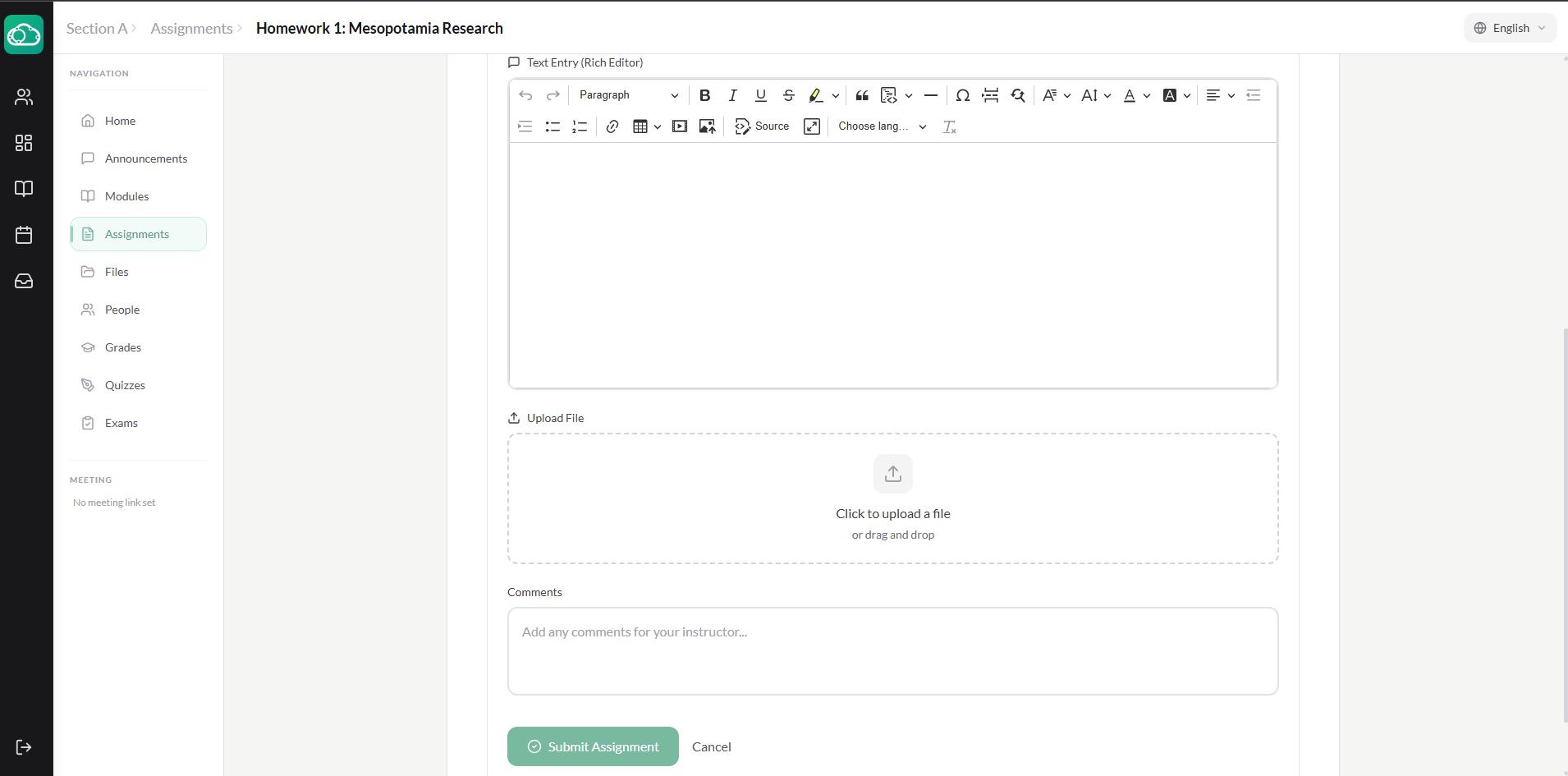
- Click Upload File.
- In the file picker, browse to your file and select it — or drag and drop the file directly into the upload zone.
- You will see a preview of the file name and size. If you need to add additional files, click Add Another File.
- When you are ready, click Submit Assignment.
Supported file types include PDF, DOCX, PPTX, XLSX, JPG, PNG, and more.
Writing a Text Submission
Some assignments ask you to type your response directly into NimbusLearn using the built-in text editor.
- Open the assignment and scroll to the Submission area.
- Click the Text Entry tab.
- Type or paste your response into the rich-text editor. You can format text with bold, italics, bullet points, and headings using the toolbar.
- Click Submit Assignment when you are finished.
If you are writing a long response, consider drafting it in a word processor first and then pasting it in to avoid losing your work.
Checking Your Submission Status
After you submit, the assignment page updates to show your submission status. You will see one of the following:
- Submitted — your work has been successfully received. The timestamp and file name (or text preview) are shown.
- Graded — your instructor has reviewed and scored your submission.
- Missing — the due date has passed and no submission was recorded.
You will also receive a confirmation notification in your NimbusLearn inbox whenever a submission is successfully recorded.
Viewing Your Grade and Instructor Feedback
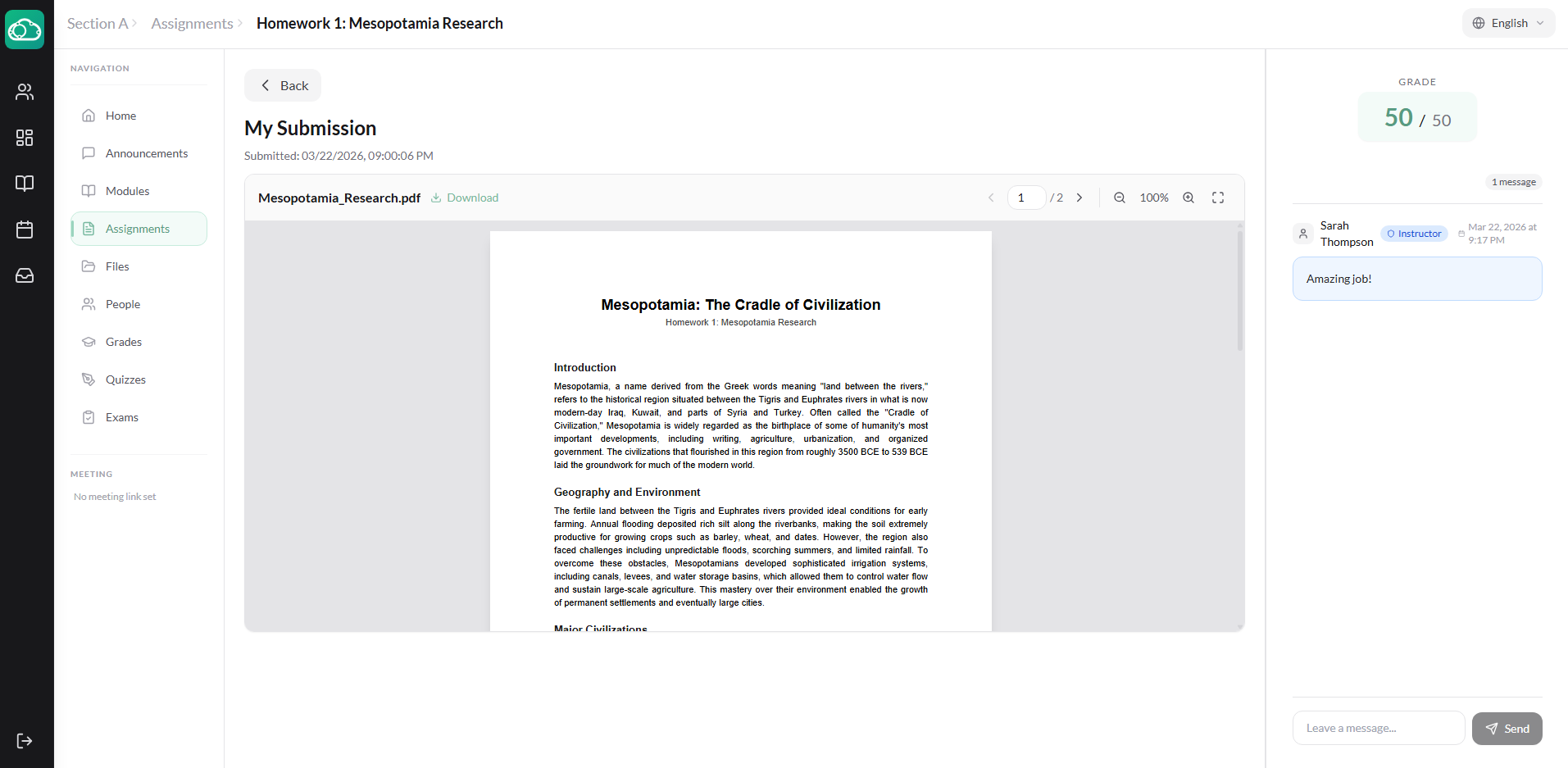
Once your assignment has been graded, you can view your score and any feedback your instructor left.
- Open the assignment — your score will be displayed (for example, 85/100).
- View any comments left by your instructor in the submission comments thread.
- If your instructor annotated your submitted PDF, you can see their annotations directly on your document.
Resubmitting When Allowed
Some assignments allow multiple attempts, meaning you can submit again after your first try. If resubmission is enabled you will see a Re-submit Assignment button on the assignment page after your initial submission. Your instructor decides how many attempts are allowed and whether only the latest or the highest score counts. Check the assignment instructions for details.
Handling Late Submissions
If the due date has already passed, you may still be able to submit — depending on your instructor's settings. Late submissions are marked with a Late label and your instructor may apply a penalty. The assignment detail page will clearly state whether late submissions are accepted and if a penalty applies.
Even if late submissions are accepted, always aim to submit on time. Set reminders using the NimbusLearn calendar or your phone to avoid last-minute surprises.
Checking Your Overall Grades
To see all of your grades in one place, click Grades in the left sidebar of any course. The grades page shows a table of every assignment, quiz, and graded activity along with your score, the points possible, and your running total.
You can also access a cross-course grades summary from the main navigation by clicking Grades on the dashboard sidebar. This shows your current grade for each course in a single view, making it easy to see where you stand overall.
If you notice a grade that seems incorrect, reach out to your instructor through the course messaging feature — include the assignment name and explain what you believe is wrong.